Change the date and time of a FIT file
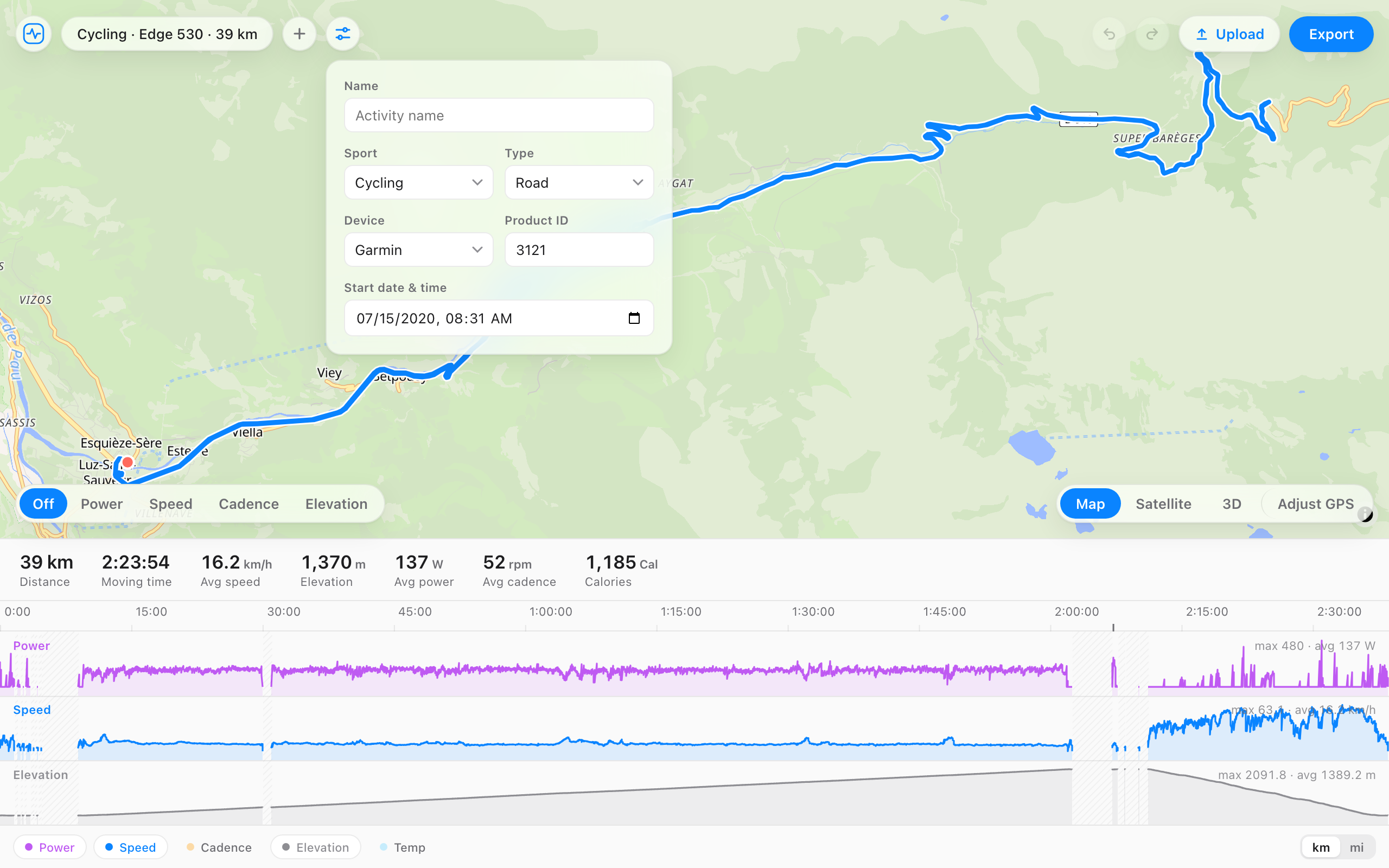
Shift the whole activity to a new start date and time. Every timestamp moves together, records, laps, sessions, and the summary, so the file stays consistent and platforms accept it without complaint.
A run that filed under the wrong day. Shift it.
StartSat, Jun 6 · 7:02 AM
Lap 4Sat, Jun 6 · 8:15 AM
FinishSat, Jun 6 · 9:26 AM
Every timestamp in the file moves together.
When it helps
- The watch was still on the old time zone after a flight.
- A device reset its clock and the activity filed under the wrong year.
- A treadmill run or trainer ride synced at the wrong hour.
- Two recordings need to sit apart in time before you merge them.
How it works
- Open your file, or drag it onto the page.
- Open the details panel next to the file name.
- Set the new start date and time.
- Export the file and upload it.
Questions
- Does everything in the file shift together?
- Yes. Records, laps, sessions, and the summary all move by the same amount, so durations and totals stay right.
- Can I move an activity to a different day or year?
- Yes. Set any start date and time. The activity keeps its length and data, just at the new time.
- Will Strava and Garmin Connect accept the shifted file?
- Yes. FIT File Editor exports a valid .fit file. Delete the original upload first so it doesn't appear twice.
- Is it free, and does the file get uploaded?
- Free, no account, and the file never leaves your browser.